Capture and sync edge data
You can use the data management service to capture data from supported components and services, then sync it to the cloud. You can also sync data from arbitrary folders on your machine.
How data capture and data sync work
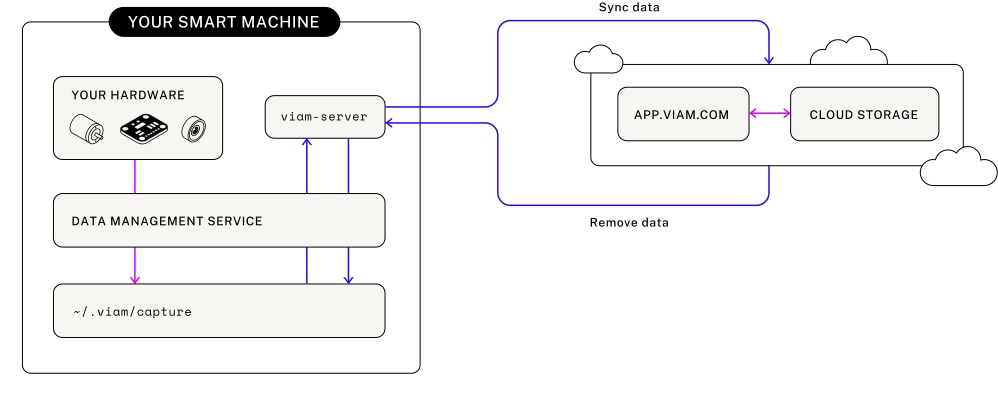
The data management service writes data from your configured Viam resources to local storage on your edge device and syncs data from the edge device to the cloud:
- The data management service writes captured data to local edge device storage (
~/.viam/capture by default). - The data management service syncs data to the Viam cloud at a configured sync interval using encrypted gRPC calls and deletes it from the disk once synced.
- You can capture and sync data independently; one can run without the other.
For more information, see How sync works.
Configure data capture and sync for individual resources
Navigate to a configured resource in Builder mode.
Find the Data capture section in the resource panel.
Click + Add method.
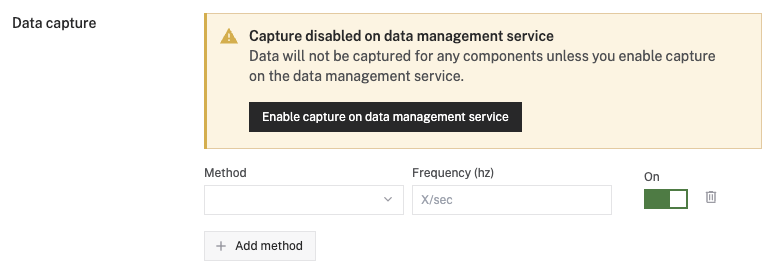
If you see a Capture disabled on data management service warning, click Enable capture on data management service.
Select a Method to capture data from.
Camera capture methods
Camera components provide two similar, but distinct capture methods:
- GetImages: Returns an image per camera sensor for 3D cameras (for example, “color” as JPEG for RGB sensors, “depth” as a depth map for depth sensors), or a single image for webcams, RTSP cameras etc.
Set the capture Frequency in hertz, for example to
0.2withGetImageson a camera to capture an image every 5 seconds.Save your config.

You can add multiple methods with different capture frequencies.
For instructions on configuring data capture and sync with JSON, see Advanced data capture and sync configurations.
View captured data
- Navigate to the DATA tab.
- Select the Images, Files, Point clouds, or Sensors subtab.
- Filter data by location, type, and more.
Stop data capture or data sync
Stop data capture for a specific resource
Navigate to the Data capture section of your resource’s configuration card.
Toggle the configured capture method’s switch to Off.

Save your config.

Stop data capture for all resources
Navigate to the Data capture section of the data management service configuration card.
Toggle the Capturing switch to Off.
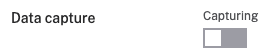
Save your config.

Disable data sync
Navigate to the Cloud sync section of the data management service configuration card.
Toggle the Syncing switch to Off.
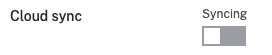
Save your config.

Tip: More ways to control data capture or sync
For other ways to control data synchronization, see:
Next steps
For more information on available configuration attributes and options like capturing directly to MongoDB or conditional sync, see Advanced data capture and sync configurations. To leverage AI, you can create a dataset with the data you’ve captured.
Was this page helpful?
Glad to hear it! If you have any other feedback please let us know:
We're sorry about that. To help us improve, please tell us what we can do better:
Thank you!