Deploy software packages to machines (OTA)
The following steps show you how to deploy and manage your machine’s software over the air (OTA).
For microcontrollers, see Over-the-air firmware updates for more information.
Prerequisites
Start by setting up one machine. Once your machine is connected to Viam, return to this page.
Create a fragment
Viam has a built-in tool called fragments that enable you to reuse one configuration across multiple machines. When deploying or updating software on many machines, you should use fragments to deploy your modules OTA to your machines. For more detailed information, see Reuse configuration.
Go to app.viam.com/fragments.
Click Create fragment.
Set your privacy settings at the top of the page.
Choose one of the following privacy options for your fragment:
- Public: Any user inside or outside of your organization will be able to view and use this fragment.
- Private: No user outside of your organization will be able to view or use this fragment.
- Unlisted: Any user inside or outside of your organization, with a direct link, will be able to view and use this fragment.
Click Save.
Configure your hardware and software
Click the + button to add drivers for your hardware resources and any other resources you want to use with your control logic. For more information, see Supported hardware.
If you created a control logic module, add it to your machine.
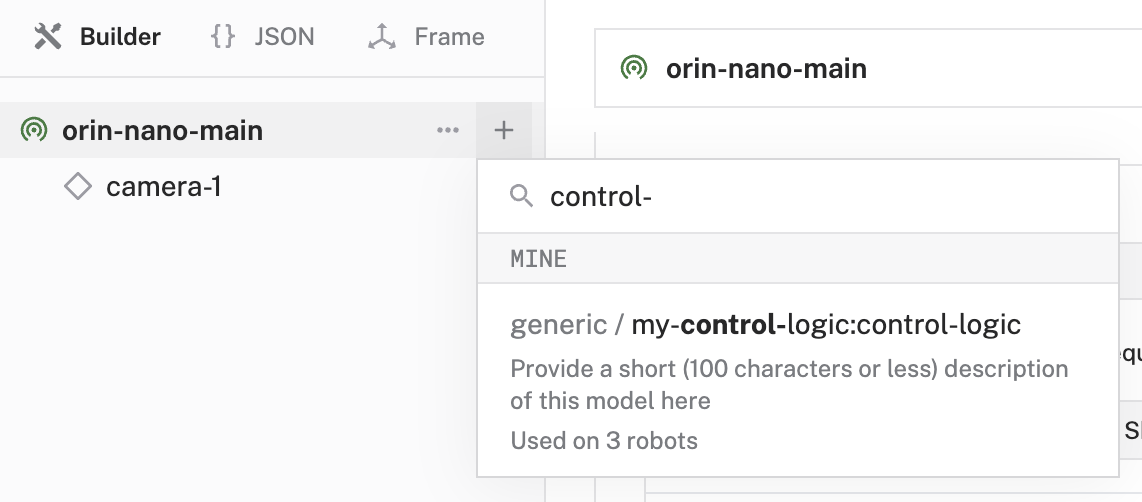
Optionally, add other resources, or settings.

Set the version and update strategy
For each module:
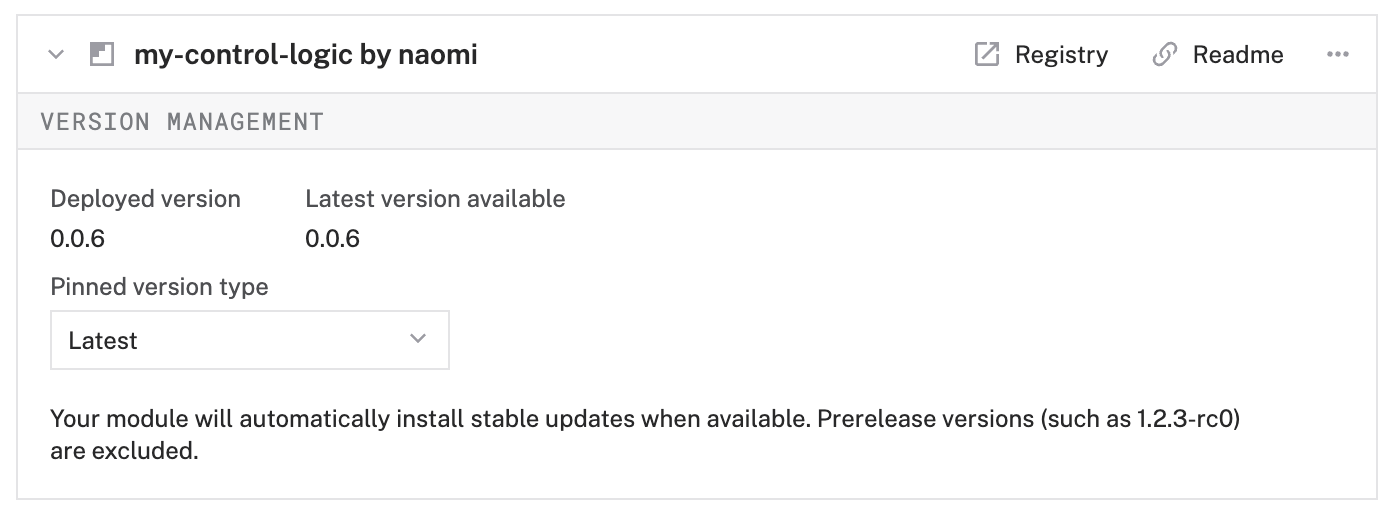
Scroll to the module card for your control logic module.
Select a Pinned version type.
You can select a specific version or set the machine to always update to the latest major, minor, patch, or pre-release version once new versions are available. For more information on these configuration options, see Module versioning.
By default, if the set version type allows for automatic updates, when a new version of a module or package becomes available, it will automatically update when the configuration is synced next. To ensure that updates only occur when your machines are ready, configure a maintenance window. With a configured maintenance window, configuration updates will only be applied when maintenance is allowed.

Caution
For any version type other than Patch (X.Y.Z), the module will upgrade as soon as an update that matches that specified version type is available, which will restart the module. If the module cannot be interrupted, the module will not be upgraded.
Add the fragment automatically to your machines with provisioning
Provisioning allows you to automatically add fragments to your machines. See Provisioning for more information.
Add the fragment to your machines manually
You can also add fragments manually to the machines that need it:
Navigate to your machine’s CONFIGURE tab.
Click the + button.
Select Insert fragment.
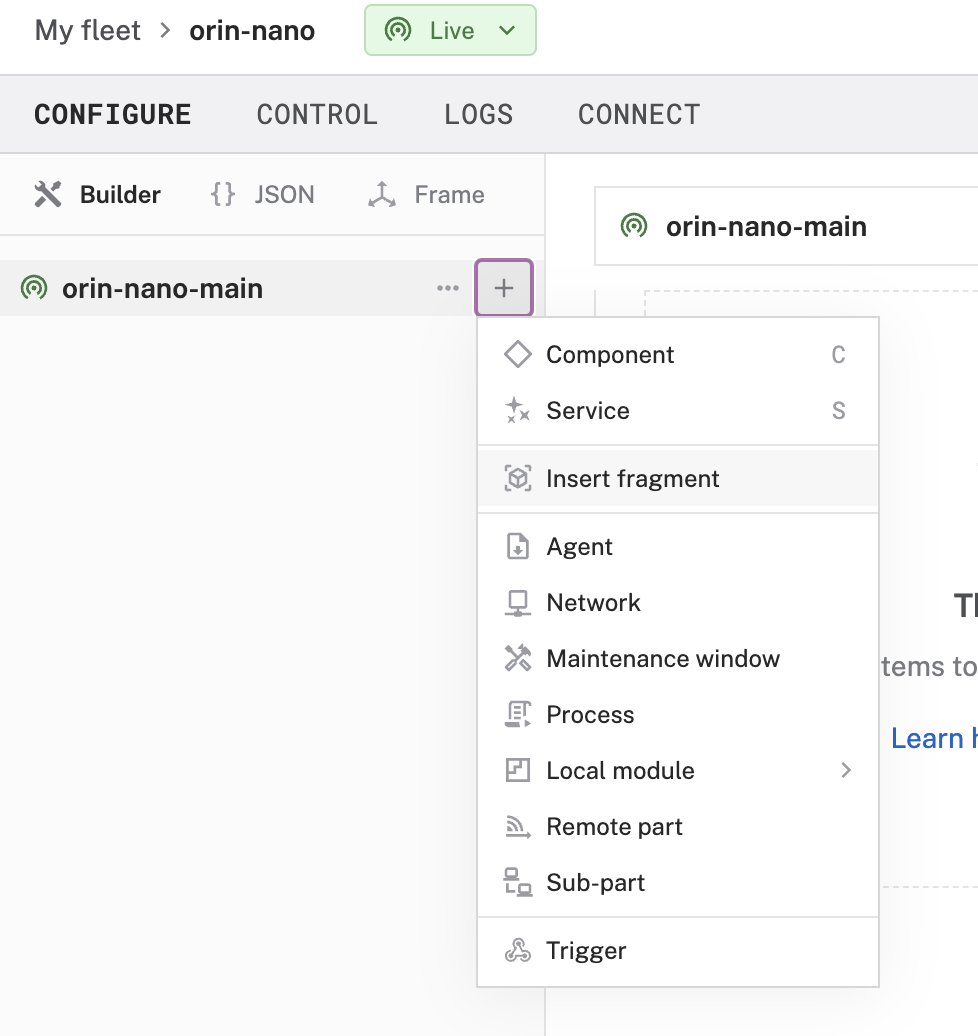
Search for your fragment and add it.
Click Save in the upper right corner of the screen.

Tip
You can also add multiple fragments to one machine.
Was this page helpful?
Glad to hear it! If you have any other feedback please let us know:
We're sorry about that. To help us improve, please tell us what we can do better:
Thank you!